
Update MyMercy Insurance Information and Note: New Point•C Medical & Dental ID Cards being issued
Keeping your insurance information up to date in the MyMercy Mobile App is essential for smooth processing of your visits and claims. Here’s a step-by-step guide to updating, adding, or removing your insurance coverage.
Accessing Your Insurance Information
-
Sign in to the MyMercy App on your phone or device.
-
Open the main menu by tapping the ☰ button.
Figure 1: Main Menu Button
-
Scroll or search for the “Insurance” section in the main menu and click on “Insurance Summary.”
Figure 2: Insurance Summary

Managing Your Coverage
Inside the Insurance Summary section, you can:
-
Remove old coverage
-
Update existing coverage
-
Add new coverage
-
Upload insurance card photos
Figure 3: Reference for Steps 4–7
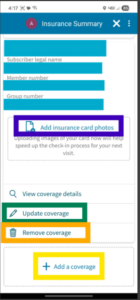
Adding Insurance Card Photos
-
After selecting a coverage, you’ll see an area to “Add insurance card photos.”
-
TIP: Make sure you are adding the photos to the matching coverage.
Updating Coverage
-
To correct or update an existing coverage, tap the “Update coverage” option or the pencil icon.
Removing Old Coverage
-
Locate the coverage you want to remove and tap the “Remove coverage” option or the trashcan icon.
Adding New Coverage
-
At the bottom of your listed coverages, tap “Add a coverage.”
-
The section will expand, and you can either:
-
Upload images of your insurance card, or
-
Enter the coverage information manually by following the prompts.
-
-
TIP: If you do not upload images of your card, remember to bring the card to future appointments so it can be scanned into your chart.
Figure 4: Upload or Enter Insurance Information

Important Note About ID Cards
- Current ID cards with Med-Pay branding are still valid and can continue to be used.
- New ID cards with Point•C branding are expected to be issued this month.
Discover more from Human Resources Blog
Subscribe to get the latest posts sent to your email.